Add a firewall and scans without treating one plugin as a substitute for updates, backups, access control, and good hosting.
What you will accomplish: You will configure a sensible security baseline and know how to respond to alerts without accidentally locking out the church team.
Before you begin
Work on a staging site when possible. Make a current database-and-files backup, record the installed versions, and identify the person who can approve production changes. Menu names can move slightly between plugin releases, so use the linked official documentation when an interface differs.
Secure accounts before adding tools
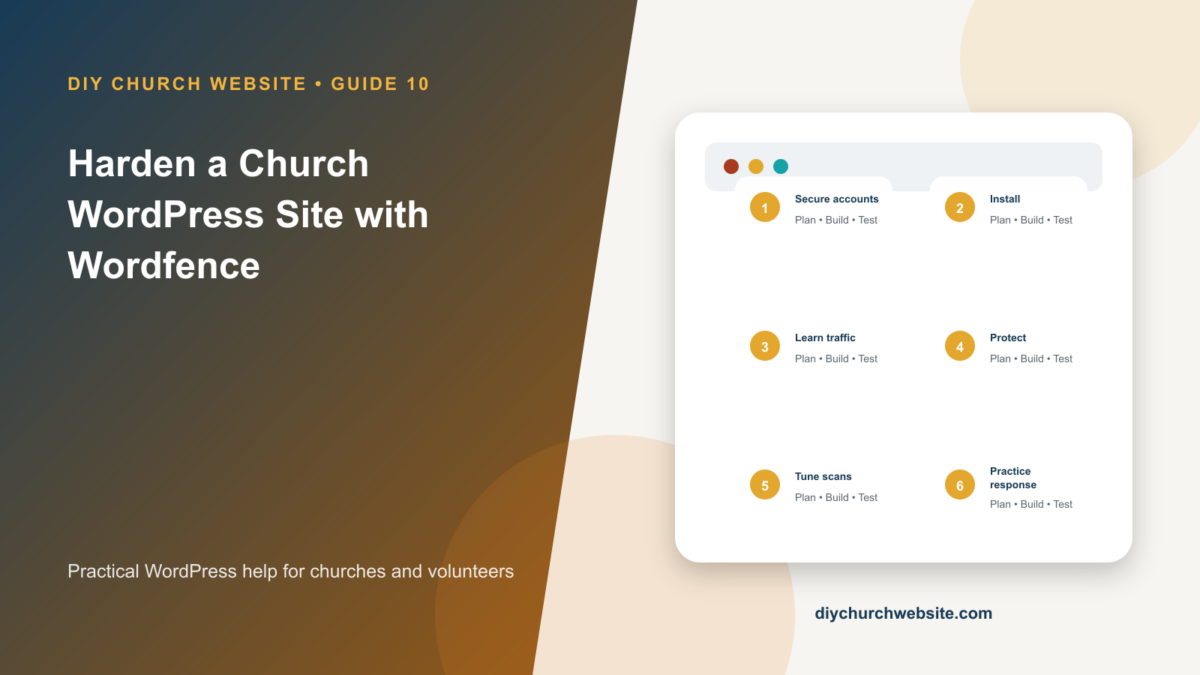
Give every administrator a separate account, use password-manager-generated passwords, enable multi-factor authentication, and remove accounts promptly when roles change. An Editor usually does not need plugin installation access.
Confirm that the domain, hosting, DNS, backup storage, payment gateway, and Google accounts also use church-controlled recovery methods.
Install and learn the firewall
Install Wordfence, review its email destination, and allow the firewall to learn normal traffic. After the learning period, confirm Enabled and Protecting. Consider Extended Protection only after downloading the offered server configuration backups.
Test logins, Contact Form 7, donations, bbPress, AI connector calls, sermon media, event registrations, webhooks, and scheduled tasks while watching for false positives.
Tune alerts and scans
Send urgent findings to more than one responsible person, but reduce noisy informational alerts that teach people to ignore email. Schedule scans during a quiet period and review newly changed files, vulnerable plugins, and unexpected administrators.
Do not post scan details, file paths, keys, or raw logs in a public forum. Use a private incident channel.
Build a response plan
When an alert appears, preserve evidence, verify the finding, place the site into an appropriate limited or private mode if needed, rotate affected credentials, contact the host, and restore only from a known-clean backup.
Security is risk reduction, not a one-click score. Keep WordPress, DIY Church Wireframe, child themes, and plugins updated and delete software the site does not use.
How this fits the DIY Church ecosystem
DIY Church Wireframe and its child themes handle presentation. Keep operational records in their appropriate plugins so sermons, events, forms, donations, forum topics, SEO settings, and analytics remain available if the visual design changes. Clear page, server, and CDN caches after configuration changes, then verify the result while signed out.
Completion checklist
- ☐ Unique accounts and MFA enabled
- ☐ Alert email is monitored
- ☐ Firewall reaches protecting mode
- ☐ Server-file backups saved before optimization
- ☐ Dynamic features tested
- ☐ Incident contacts and clean backups documented
Common mistakes to avoid
- Optimizing the firewall without saving configuration backups.
- Blocking XML-RPC or REST without checking integrations.
- Assuming a security plugin makes updates optional.
Keep a change record
Record the date, administrator, versions, settings changed, pages tested, and rollback location. Do not put passwords, API keys, recovery codes, donor information, private member information, or connector credentials in the record.
Official references
Watch a guided walkthrough
This carefully selected walkthrough from Wordfence complements the written steps above. The written guide remains the primary reference because third-party interfaces and videos can change.
Watch “Get Started With Wordfence in 15 Minutes” on YouTube
Interfaces and service terms can change. This guide was prepared July 14, 2026; verify current requirements and privacy terms before production use.