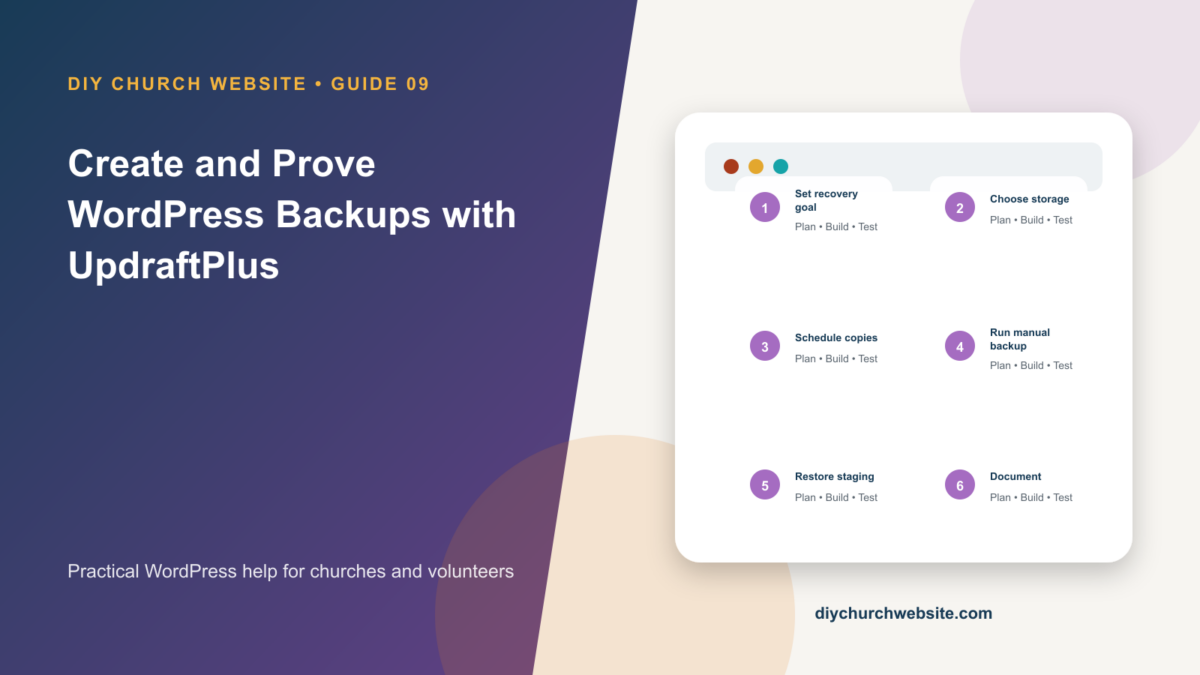
Schedule off-site backups, understand what must be included, and practice a restore before an emergency.
What you will accomplish: You will have automated off-site copies plus evidence that the church can actually restore its site.
Before you begin
Work on a staging site when possible. Make a current database-and-files backup, record the installed versions, and identify the person who can approve production changes. Menu names can move slightly between plugin releases, so use the linked official documentation when an interface differs.
Define recovery expectations
A backup policy should answer how much work the church can afford to lose and how long the website can be unavailable. A weekly brochure site and a site receiving donations or registrations need different schedules.
A complete WordPress recovery needs the database and files: uploads, themes, plugins, and relevant configuration. A database-only backup will not restore uploaded sermon media or custom theme files.
Configure independent storage
Install UpdraftPlus and connect storage that is not on the same hosting account. Use a church-owned account with multi-factor authentication. Local copies are convenient but do not protect against a hosting account failure.
Schedule database backups more frequently than file backups when content changes daily. Set retention high enough to notice a problem before every clean copy expires.
Create milestone backups
Run a manual backup before WordPress core updates, parent-theme updates, plugin migrations, demo imports, DNS changes, and bulk content work. Label or separately retain launch and pre-upgrade milestones.
Confirm the remote destination contains every expected archive and that failure notices reach an actively monitored address.
Practice restoration
On staging, restore the database, plugins, themes, uploads, and other components from a selected backup. Sign in, open pages, play media, submit a form, inspect sermons and events, and check permalinks.
Document the credentials, storage location, restoration order, emergency contacts, and decision maker without placing passwords in the document.
How this fits the DIY Church ecosystem
DIY Church Wireframe and its child themes handle presentation. Keep operational records in their appropriate plugins so sermons, events, forms, donations, forum topics, SEO settings, and analytics remain available if the visual design changes. Clear page, server, and CDN caches after configuration changes, then verify the result while signed out.
Completion checklist
- ☐ Database and files are included
- ☐ Copies leave the web server
- ☐ Storage belongs to the church
- ☐ Failure alerts are monitored
- ☐ Pre-update manual backups are routine
- ☐ A staging restore has succeeded
Common mistakes to avoid
- Calling a backup successful without restoring it.
- Keeping every copy on the same server.
- Allowing the only storage account to belong to a former volunteer.
Keep a change record
Record the date, administrator, versions, settings changed, pages tested, and rollback location. Do not put passwords, API keys, recovery codes, donor information, private member information, or connector credentials in the record.
Official references
Watch a guided walkthrough
This carefully selected walkthrough from Matt Tutorials complements the written steps above. The written guide remains the primary reference because third-party interfaces and videos can change.
Watch “UpdraftPlus Tutorial: How to Back Up a WordPress Website” on YouTube
Interfaces and service terms can change. This guide was prepared July 14, 2026; verify current requirements and privacy terms before production use.