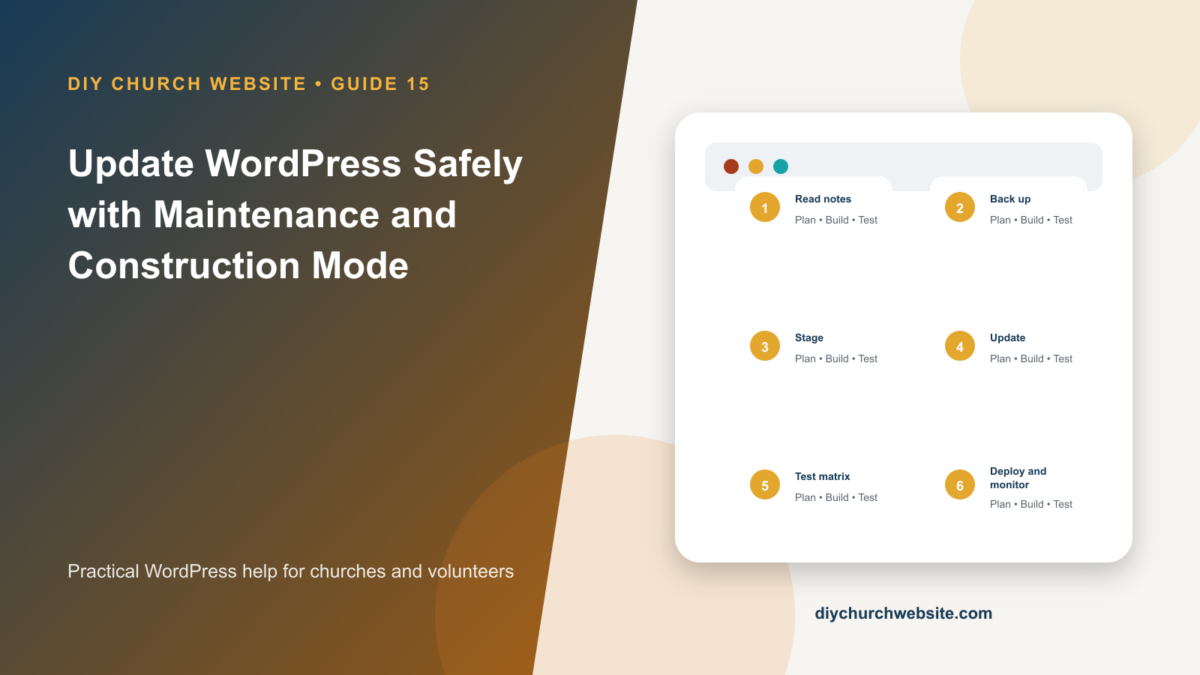
Use staging, verified backups, appropriate HTTP behavior, and a repeatable test plan for WordPress, parent-theme, child-theme, and plugin updates.
What you will accomplish: You will have an update routine that protects visitors and search engines while preserving a practical rollback path.
Before you begin
Work on a staging site when possible. Make a current database-and-files backup, record the installed versions, and identify the person who can approve production changes. Menu names can move slightly between plugin releases, so use the linked official documentation when an interface differs.
Choose the right operating profile
Use Short Maintenance for a brief planned interruption; it should return HTTP 503 with a reasonable Retry-After. Use Prelaunch for a meaningful public coming-soon homepage. Use Private Staging for nonpublic work. Use Limited Operation when pages remain public but selected transactions should pause.
Do not use one generic coming-soon response for every situation. Search engines, visitors, APIs, feeds, and webhooks need different behavior.
Prepare the update
Read release notes, confirm WordPress and PHP requirements, create and verify a fresh database-and-files backup, and reproduce the production stack on staging. Record current versions and known warnings.
For DIY Church sites, keep the active child theme and DIY Church Wireframe parent together. Update the parent without editing it, then update the child and companion plugins according to their compatibility notes.
Update in a controlled order
On staging, update WordPress core, then the parent theme, active child theme, and plugins in small groups. Clear caches and run any database upgrade prompts before testing.
Use the Maintenance & Construction Mode plugin only on production when the update can affect visitors. Allow administrators and required webhook paths through according to the selected profile.
Run the ministry test matrix
Check the homepage, menus, search, posts, mobile layout, Contact Form 7, mail, donations, sermons, podcast feed, events, bbPress, user login, SEO output, sitemap, analytics, cron, and AI connector workflows.
If a serious failure appears, stop changes and restore the matching files and database together. Do not improvise a downgrade without a pre-update backup.
How this fits the DIY Church ecosystem
DIY Church Wireframe and its child themes handle presentation. Keep operational records in their appropriate plugins so sermons, events, forms, donations, forum topics, SEO settings, and analytics remain available if the visual design changes. Clear page, server, and CDN caches after configuration changes, then verify the result while signed out.
Completion checklist
- ☐ Release notes reviewed
- ☐ Fresh backup verified
- ☐ Staging matches production
- ☐ Correct maintenance profile chosen
- ☐ Full ministry test matrix passes
- ☐ Caches purged and monitoring checked
Common mistakes to avoid
- Updating production first.
- Restoring only files when the database also changed.
- Leaving short maintenance mode active after work ends.
Keep a change record
Record the date, administrator, versions, settings changed, pages tested, and rollback location. Do not put passwords, API keys, recovery codes, donor information, private member information, or connector credentials in the record.
Official references
Interfaces and service terms can change. This guide was prepared July 14, 2026; verify current requirements and privacy terms before production use.