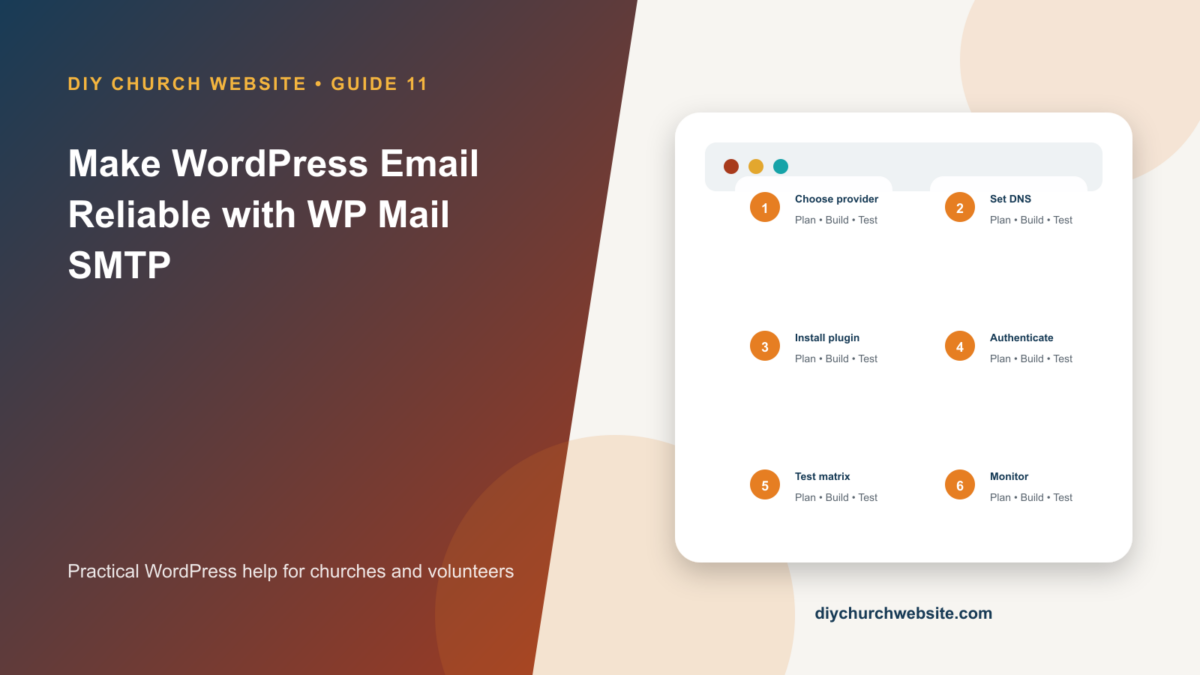
Connect WordPress to authenticated mail, align the From address, and test every message the church depends on.
What you will accomplish: You will replace unverified server mail with an authenticated sending path and a documented test matrix.
Before you begin
Work on a staging site when possible. Make a current database-and-files backup, record the installed versions, and identify the person who can approve production changes. Menu names can move slightly between plugin releases, so use the linked official documentation when an interface differs.
Separate website mail from newsletters
WordPress transactional email includes password resets, form notifications, donation receipts, registration notices, forum messages, and administrative alerts. It should use an authenticated provider designed for application mail.
A newsletter platform remains the better place for large mailing lists. Do not turn the web server into a bulk email sender.
Choose a church-owned sender
Create an address on the church domain such as website@example.org. Decide whether it is a sending identity, monitored inbox, or both. Configure SPF, DKIM, and DMARC according to the provider and DNS host.
Keep the mail provider account and DNS ownership with the church, then grant individual access to staff or vendors.
Run the setup wizard
Install WP Mail SMTP, choose the selected mailer, set the From Email and From Name, and complete authentication. Use Force From Email only when the site should consistently use that sender.
Do not paste mail passwords or API keys into support posts. Prefer provider APIs or credentials stored in protected configuration when supported.
Test business-critical messages
Send the plugin's test email, then test WordPress password reset, Contact Form 7, GiveWP receipts, event notices, forum notifications, and any private administrative summary reports. Check the recipient inbox, spam folder, sender alignment, Reply-To, and links.
Monitor failures and provider limits. Repeat the matrix after DNS changes, migration, domain changes, or mail-plugin updates.
How this fits the DIY Church ecosystem
DIY Church Wireframe and its child themes handle presentation. Keep operational records in their appropriate plugins so sermons, events, forms, donations, forum topics, SEO settings, and analytics remain available if the visual design changes. Clear page, server, and CDN caches after configuration changes, then verify the result while signed out.
Completion checklist
- ☐ Church owns the sending domain
- ☐ SPF, DKIM, and DMARC are reviewed
- ☐ Plugin test message arrives
- ☐ Password reset arrives
- ☐ Forms and donation receipts arrive
- ☐ Failure monitoring has an owner
Common mistakes to avoid
- Using a personal Gmail address as the permanent church sender.
- Testing only the plugin's test email.
- Adding a second SMTP plugin while troubleshooting.
Keep a change record
Record the date, administrator, versions, settings changed, pages tested, and rollback location. Do not put passwords, API keys, recovery codes, donor information, private member information, or connector credentials in the record.
Official references
Watch a guided walkthrough
This carefully selected walkthrough from WPForms complements the written steps above. The written guide remains the primary reference because third-party interfaces and videos can change.
Watch “How to Set Up WP Mail SMTP with Gmail” on YouTube
Interfaces and service terms can change. This guide was prepared July 14, 2026; verify current requirements and privacy terms before production use.