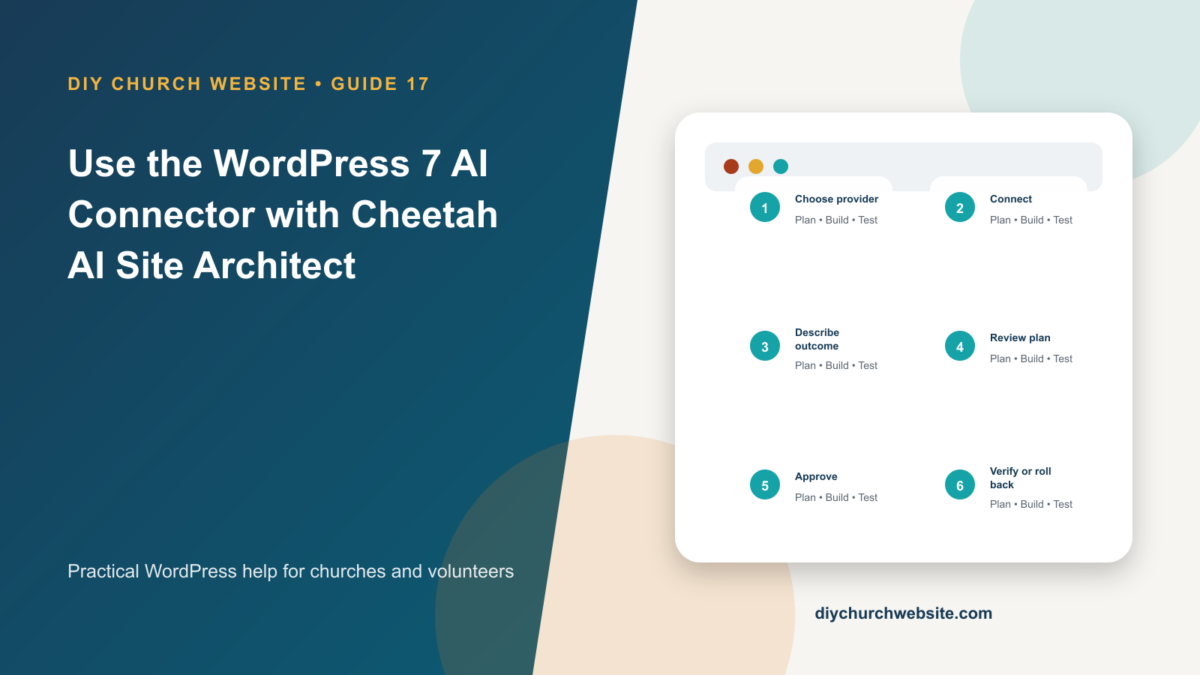
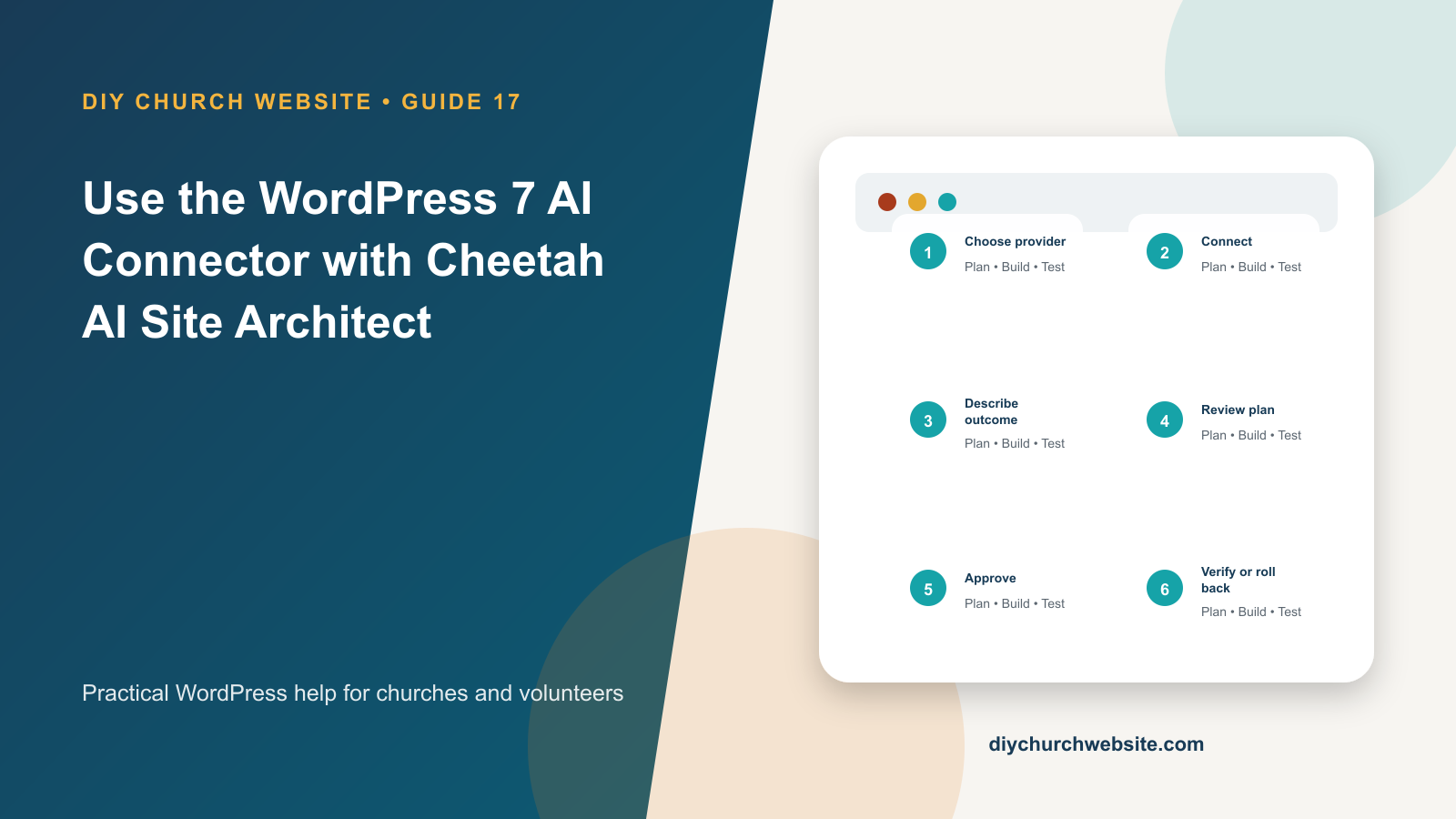
Connect a provider, understand the safety boundary, generate a site plan, approve changes, and roll them back without giving AI access to theme code.
What you will accomplish: You will use provider-independent AI planning while keeping file edits, credentials, and unsupported actions outside the model's reach.
Before you begin
Work on a staging site when possible. Make a current database-and-files backup, record the installed versions, and identify the person who can approve production changes. Menu names can move slightly between plugin releases, so use the linked official documentation when an interface differs.
Understand what WordPress provides
WordPress 7.0 includes a provider-agnostic AI Client. A compatible provider plugin supplies models and credentials through Settings > Connectors. Individual plugins describe the capability they need rather than hard-coding one AI company.
The provider's pricing, retention, and privacy terms still apply. The church should own the provider account and decide what site data may be sent.
Install the Cheetah integration
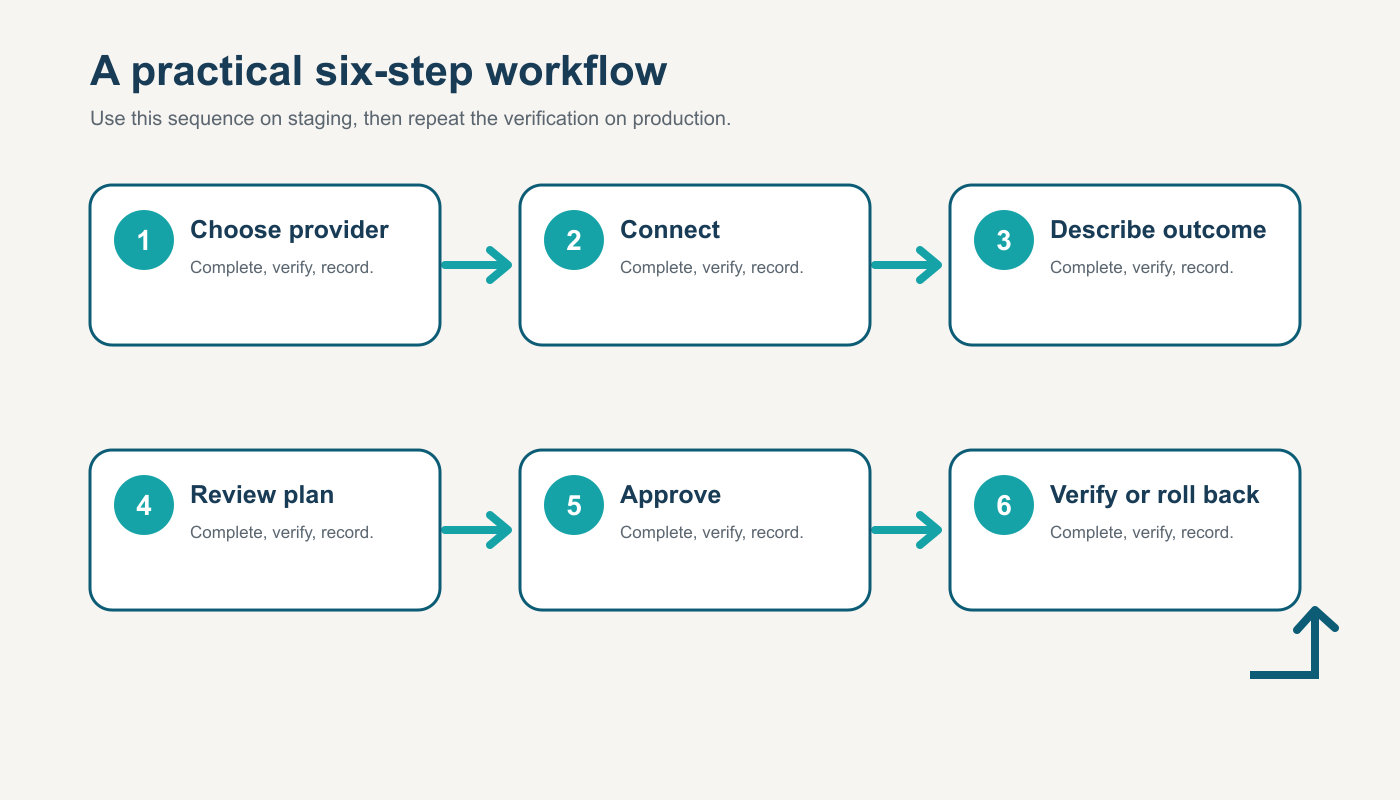
Install Cheetah Wireframe 2.4.0 or newer, activate a compatible child theme, install Cheetah AI Site Architect, and configure a provider under Settings > Connectors. Open Appearance > AI Site Architect.
The DIY Church Website child theme contributes a bounded profile describing the portal purpose, audience, content policy, pages, and optional bbPress support.
Generate and inspect a plan
Ask for a concrete outcome such as create a ministries landing page and update the primary navigation. The planner receives an allowlisted snapshot of site identity, page titles and slugs, safe theme settings, active integrations, and child-theme context—not page bodies, users, orders, passwords, or connector keys.
Inspect every proposed setting, page, status, menu item, and homepage change. AI can be confidently wrong, so approval remains an administrator decision.
Apply and verify
Use Approve and apply immediately only after the plan is understood. The plugin creates structured WordPress content and changes allowlisted theme configuration; it does not edit PHP, CSS, JavaScript, or theme templates.
Check the frontend, mobile navigation, accessibility, SEO metadata, forms, and links. Use the recorded change history to roll back the generated configuration and content when necessary.
How this fits the Cheetah ecosystem
Cheetah Wireframe and its child themes handle presentation. Keep operational records in their appropriate plugins so sermons, events, forms, donations, forum topics, SEO settings, and analytics remain available if the visual design changes. Clear page, server, and CDN caches after configuration changes, then verify the result while signed out.
Completion checklist
- ☐ WordPress 7.0 and compatible Cheetah versions installed
- ☐ Church owns the provider account
- ☐ Provider privacy terms reviewed
- ☐ Plan has a narrow outcome
- ☐ Administrator reviews before applying
- ☐ Frontend and rollback are tested
Common mistakes to avoid
- Treating the connector as a universal site administrator.
- Including secrets or private member information in a prompt.
- Approving a broad plan without reading the change list.
Keep a change record
Record the date, administrator, versions, settings changed, pages tested, and rollback location. Do not put passwords, API keys, recovery codes, donor information, private member information, or connector credentials in the record.
Official references
Interfaces and service terms can change. This guide was prepared July 14, 2026; verify current requirements and privacy terms before production use.