Install the Cheetah foundation, choose a child theme, import starter content safely, and customize without painting yourself into a corner.
What you will accomplish: You will understand which ZIP to install first, when to import demo content, and where content, design, sermons, and events should live.
Before you begin
Work on a staging site when possible. Make a current database-and-files backup, record the installed versions, and identify the person who can approve production changes. Menu names can move slightly between plugin releases, so use the linked official documentation when an interface differs.
Understand the two-theme foundation
Cheetah Wireframe is the parent theme. Sanctuary, Heritage, Citywide, Rise, Harbor, Welcome, and DIY Church Website are child themes. The parent provides the dependable layout and customization system; the active child theme provides the selected design and demo profile.
Both themes remain installed, but only the child theme is activated. Updating the parent does not normally remove pages, posts, media, sermons, or events because those records live in WordPress and plugins.
Install in the right order
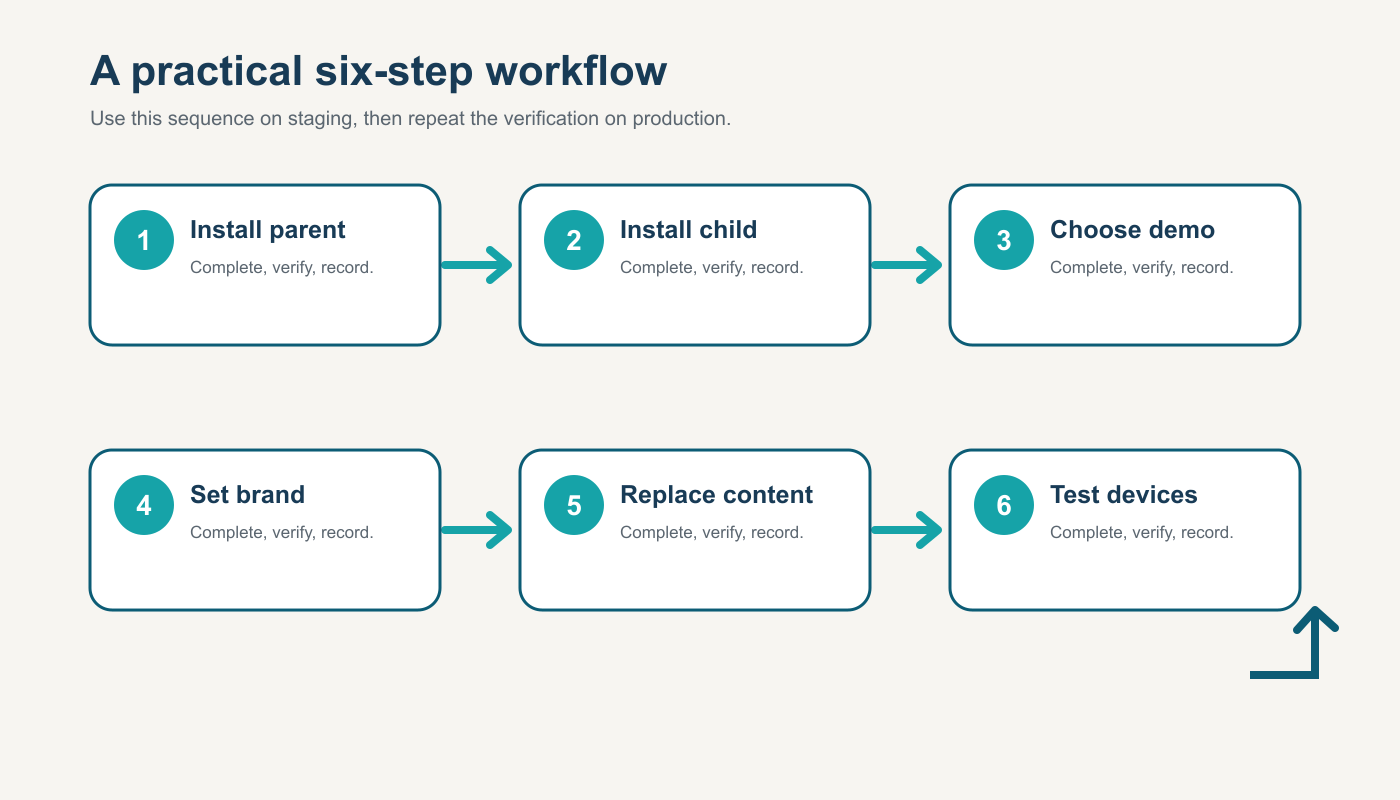
Go to Appearance > Themes > Add New > Upload Theme and install the Cheetah Wireframe ZIP. Do not activate it if you already know which child theme you want. Upload the chosen child-theme ZIP next, then activate the child.
The setup prompt offers a demo import or an empty activation. Import the demo on a new or staging site. On an established site, use the empty option unless you intentionally want the starter pages and menus.
- Back up first.
- Install DIY Sermons and DIY Church Events before demo import if you want their demo records.
- Use the rollback option if the starter import is not wanted.
Replace the demo systematically
Start with site identity, logo, colors, fonts, header, footer, and navigation. Next replace campus addresses, service times, ministry descriptions, staff details, sermon records, event records, forms, and social links.
Search the entire site for demo church names, placeholder phone numbers, example addresses, and stock email addresses. Check desktop and mobile after each major group of changes.
Keep functionality portable
Use the theme for appearance and the plugins for sermons, events, forums, SEO, forms, and maintenance behavior. This keeps important records available if the design changes later.
Never edit Cheetah Wireframe files directly. Put intentional code customizations in the child theme or a small site plugin, and document them for the next administrator.
How this fits the Cheetah ecosystem
Cheetah Wireframe and its child themes handle presentation. Keep operational records in their appropriate plugins so sermons, events, forms, donations, forum topics, SEO settings, and analytics remain available if the visual design changes. Clear page, server, and CDN caches after configuration changes, then verify the result while signed out.
Completion checklist
- ☐ Parent theme installed
- ☐ One child theme active
- ☐ Demo choice made on staging
- ☐ Logo and site identity replaced
- ☐ Menus and mobile navigation tested
- ☐ No demo church information remains
Common mistakes to avoid
- Activating the parent after customizing the child.
- Importing demo content into production without a backup.
- Putting sermon or event records into ordinary page layouts instead of their plugins.
Keep a change record
Record the date, administrator, versions, settings changed, pages tested, and rollback location. Do not put passwords, API keys, recovery codes, donor information, private member information, or connector credentials in the record.
Official references
Interfaces and service terms can change. This guide was prepared July 14, 2026; verify current requirements and privacy terms before production use.