Read mobile and desktop reports correctly, distinguish field data from lab data, and turn diagnostics into an ordered improvement plan.
What you will accomplish: You will stop chasing a single score and instead improve the slowest real templates with measurable before-and-after evidence.
Before you begin
Work on a staging site when possible. Make a current database-and-files backup, record the installed versions, and identify the person who can approve production changes. Menu names can move slightly between plugin releases, so use the linked official documentation when an interface differs.
Test representative pages
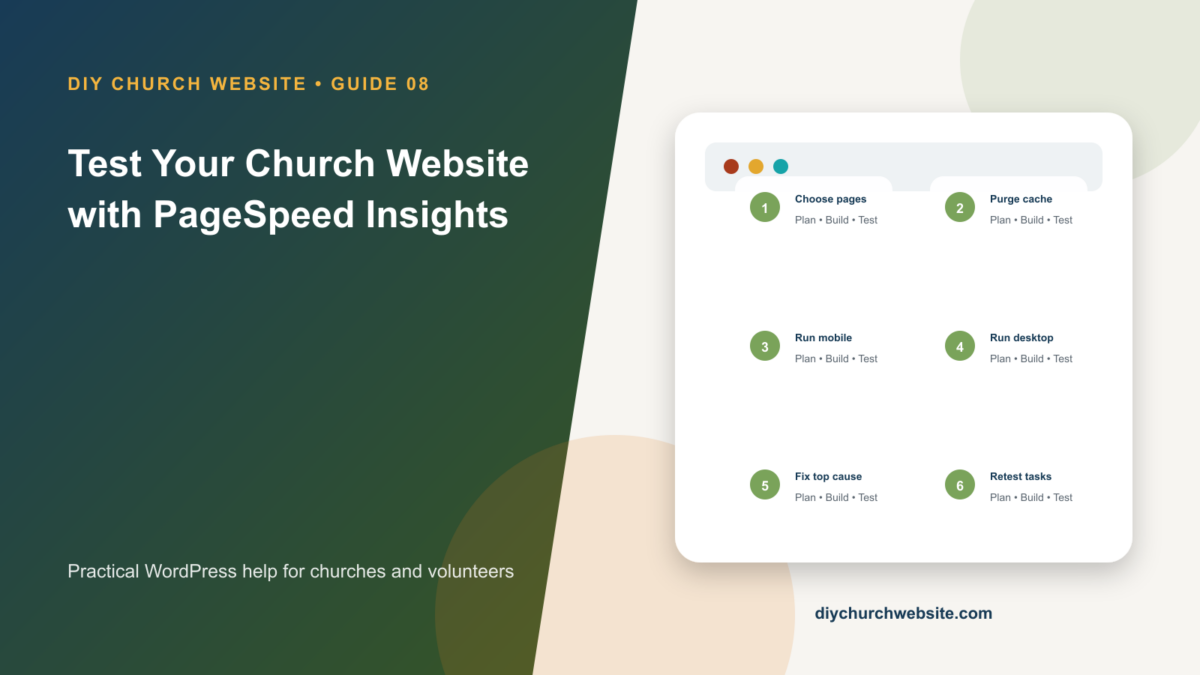
A homepage is not the whole site. Test the homepage, one ordinary page, one long article, one sermon with media, one event, the contact form, and the donation page. Run both mobile and desktop.
Save each report URL or screenshot with the date. Test production over HTTPS in a private window after purging caches.
Understand field and lab data
Field data summarizes real Chrome user experiences over a rolling period when enough data exists. Lab data runs Lighthouse in a controlled environment and is useful for diagnosing the current page. A new site may have only lab data.
Core Web Vitals focus on loading, visual stability, and responsiveness. Look at Largest Contentful Paint, Cumulative Layout Shift, and Interaction to Next Paint before worrying about cosmetic score differences.
Fix causes in a practical order
Start with hosting response time and page caching, then the hero or largest image, image dimensions, fonts, layout shifts, and long-running scripts. Remove an unnecessary plugin or embed before trying to micro-optimize it.
DIY Church pages should use properly sized Media Library images rather than full-resolution camera originals. Reserve space for images, players, maps, and donation widgets so the page does not jump while loading.
Retest without gaming the report
Change one performance layer at a time and rerun the same URLs. Also complete real tasks: open the mobile menu, submit a form, play a sermon, find an event, and complete a test donation.
A perfect laboratory score that breaks ministry tasks is a failure. Keep a performance budget and review it after major content, advertising, analytics, theme, or plugin changes.
How this fits the DIY Church ecosystem
DIY Church Wireframe and its child themes handle presentation. Keep operational records in their appropriate plugins so sermons, events, forms, donations, forum topics, SEO settings, and analytics remain available if the visual design changes. Clear page, server, and CDN caches after configuration changes, then verify the result while signed out.
Completion checklist
- ☐ Mobile and desktop tested
- ☐ Multiple page types tested
- ☐ Field and lab data kept separate
- ☐ Largest image is correctly sized
- ☐ No visible layout shifts in key sections
- ☐ Forms, media, and giving still work
Common mistakes to avoid
- Testing only the homepage.
- Installing several optimization plugins from the diagnostics list.
- Comparing scores taken on different pages or before cache warming.
Keep a change record
Record the date, administrator, versions, settings changed, pages tested, and rollback location. Do not put passwords, API keys, recovery codes, donor information, private member information, or connector credentials in the record.
Official references
Watch a guided walkthrough
This carefully selected walkthrough from DebugBear complements the written steps above. The written guide remains the primary reference because third-party interfaces and videos can change.
Watch “PageSpeed Insights: Get Started With Google's Performance Tool” on YouTube
Interfaces and service terms can change. This guide was prepared July 14, 2026; verify current requirements and privacy terms before production use.