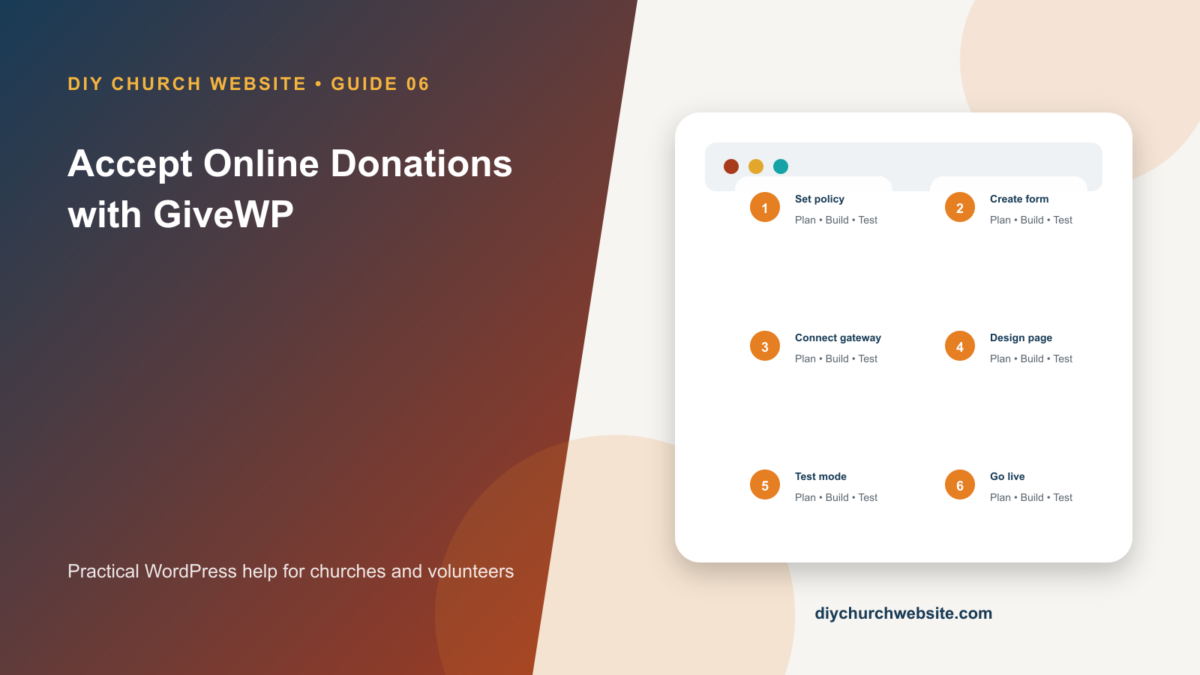
Create a trustworthy giving page, connect a payment gateway, test receipts, and keep donation data outside the theme.
What you will accomplish: You will publish a donation experience that matches the DIY Church child theme while keeping payment, donor, and receipt functionality in a dedicated plugin.
Before you begin
Work on a staging site when possible. Make a current database-and-files backup, record the installed versions, and identify the person who can approve production changes. Menu names can move slightly between plugin releases, so use the linked official documentation when an interface differs.
Plan governance before design
Decide which legal church entity owns the payment account, who can see donor records, who reconciles deposits, how refunds are approved, and how long records are retained. Use role-based accounts rather than sharing the payment owner's login.
Publish accurate fund descriptions and avoid promising tax treatment the organization is not qualified to provide. Ask the church's accountant or counsel about receipts and restricted gifts.
Create a focused donation form
Install GiveWP, keep Test Mode enabled, and create a form for the general fund before creating many campaigns. Explain what the gift supports, offer sensible amounts, allow a custom amount, and keep optional fields to a minimum.
Place the form on a full-width DIY Church page with a short trust statement, contact information, privacy link, and alternative giving instructions.
Connect and authenticate the gateway
Connect the church-owned Stripe, PayPal, or selected gateway account. Complete identity and bank verification directly with that provider. Never send secret keys by email or paste them into a support forum.
Verify the website's domain and configure authenticated transactional email so receipts and administrative notifications arrive reliably.
Test the complete donor journey
In GiveWP Test Mode, submit gifts on desktop and mobile. Test fixed and custom amounts, required fields, validation errors, confirmation pages, donor emails, staff emails, and the donation record in WordPress and the gateway.
After going live, make one small real donation and refund it according to the church's process. Check cache exclusions and repeat the test after major theme, GiveWP, gateway, or caching updates.
How this fits the DIY Church ecosystem
DIY Church Wireframe and its child themes handle presentation. Keep operational records in their appropriate plugins so sermons, events, forms, donations, forum topics, SEO settings, and analytics remain available if the visual design changes. Clear page, server, and CDN caches after configuration changes, then verify the result while signed out.
Completion checklist
- ☐ Payment account belongs to the church
- ☐ GiveWP Test Mode passes
- ☐ Receipts and staff notices arrive
- ☐ Donation and privacy pages are linked
- ☐ Cache does not store personalized checkout states
- ☐ A real low-value transaction is reconciled
Common mistakes to avoid
- Going live without a test donation.
- Giving every administrator access to donor records.
- Using a donation button that sends visitors to an unexplained third-party page.
Keep a change record
Record the date, administrator, versions, settings changed, pages tested, and rollback location. Do not put passwords, API keys, recovery codes, donor information, private member information, or connector credentials in the record.
Official references
Watch a guided walkthrough
This carefully selected walkthrough from GiveWP complements the written steps above. The written guide remains the primary reference because third-party interfaces and videos can change.
Watch “How to Use GiveWP Campaigns” on YouTube
Interfaces and service terms can change. This guide was prepared July 14, 2026; verify current requirements and privacy terms before production use.