Use LiteSpeed Cache safely, verify that page caching is really available, and optimize without breaking forms, donations, or logged-in tools.
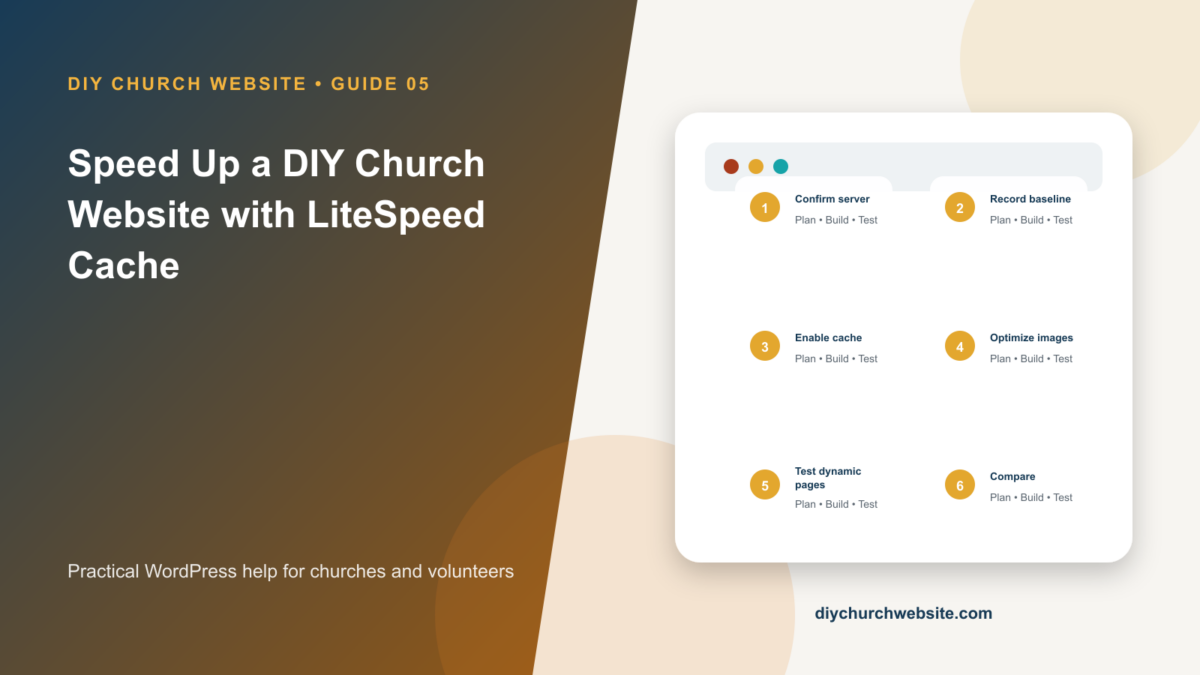
What you will accomplish: You will establish a clean performance baseline, enable one page cache, and test dynamic church features before declaring the site faster.
Before you begin
Work on a staging site when possible. Make a current database-and-files backup, record the installed versions, and identify the person who can approve production changes. Menu names can move slightly between plugin releases, so use the linked official documentation when an interface differs.
Confirm the server before touching settings
The plugin's full-page cache requires LiteSpeed Web Server with LSCache enabled or a compatible QUIC.cloud configuration. On other servers the optimization features can still run, but the server-level page cache is not available.
Ask the host what web server and cache layer are already active. Deactivate other full-page cache plugins before enabling LiteSpeed Cache.
Start with a measured baseline
Test the homepage, a sermon, an event, the contact page, and a donation page in PageSpeed Insights before changing settings. Save the URLs, mobile results, screenshots, and date.
Install LiteSpeed Cache, enable caching only after confirming compatibility, purge the cache, and test the same pages in a private browser window.
Optimize one layer at a time
Begin with page caching and browser caching. Next consider image optimization and lazy loading. Change CSS or JavaScript minification, combination, delay, and removal settings individually because those are the settings most likely to alter menus, players, forms, and donation flows.
DIY Church is responsive, so separate mobile cache is normally unnecessary unless the site deliberately serves different mobile content.
Protect dynamic pages
Do not publicly cache administrator screens, logged-in account views, donation checkout states, form nonces, or personalized pages. Verify a real donation in test mode, a Contact Form 7 submission, bbPress login and posting, sermon media, and event registration after changes.
Purge every cache layer after updates: plugin, server, CDN, and browser. A stale CDN can make a correct WordPress change appear broken.
How this fits the DIY Church ecosystem
DIY Church Wireframe and its child themes handle presentation. Keep operational records in their appropriate plugins so sermons, events, forms, donations, forum topics, SEO settings, and analytics remain available if the visual design changes. Clear page, server, and CDN caches after configuration changes, then verify the result while signed out.
Completion checklist
- ☐ Host confirms LiteSpeed or QUIC.cloud cache support
- ☐ Other page caches are inactive
- ☐ Baseline results are saved
- ☐ One setting group changed at a time
- ☐ Forms and payments pass tests
- ☐ Cache purge procedure is documented
Common mistakes to avoid
- Enabling every optimization toggle at once.
- Using two full-page caches.
- Judging performance from one homepage desktop test.
Keep a change record
Record the date, administrator, versions, settings changed, pages tested, and rollback location. Do not put passwords, API keys, recovery codes, donor information, private member information, or connector credentials in the record.
Official references
Watch a guided walkthrough
This carefully selected walkthrough from WordPress Tutorials – WPLearningLab complements the written steps above. The written guide remains the primary reference because third-party interfaces and videos can change.
Watch “LiteSpeed Cache Settings Tutorial 2025” on YouTube
Interfaces and service terms can change. This guide was prepared July 14, 2026; verify current requirements and privacy terms before production use.